Apple Maps is an essential tool for any business looking to enhance its visibility and attract more local customers. With millions of iOS users relying on Apple Maps for navigation, it’s becoming crucial for businesses to manage and optimize their listings here.
Why is Apple Business Maps Listing Important for your business in 2024?
In 2024, for local businesses to be present on Apple Maps isn’t just a “nice to have” but crucial, with the iOS market booming continually. Not only does it help improve customer accessibility, but Apple’s strong emphasis on user privacy makes it appealing to privacy-conscious customers.
This can be a game-changing service for agencies, helping clients establish, manage, and optimize their Apple Maps listings. In this guide, we will walk you through every aspect of Apple Maps optimization, from setting up a listing to implementing strategies that help get more foot traffic and rank better on SERPs.
What is Apple Business Maps Listing?
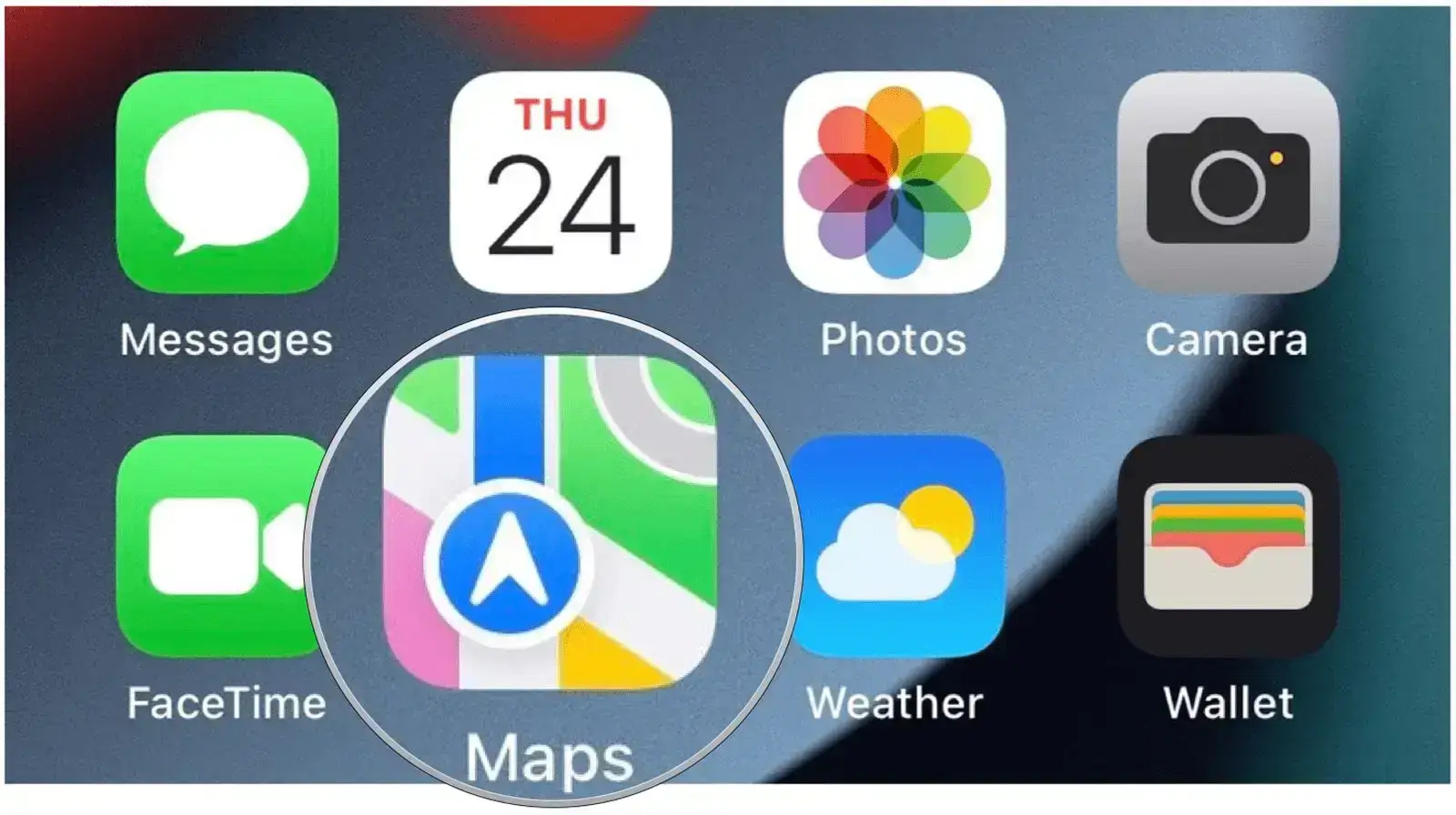
An Apple Business Maps listing is a digital profile for your business on Apple Maps. This listing lets you show all the essentials like your address, contact info, website, hours, and even customer reviews, making it easier for Apple users to find and engage with your business.
By claiming and optimizing your listing, you can increase visibility with the huge audience that relies on Apple Maps for local searches, directions, and recommendations.
Apple Maps v/s Google Maps
Let’s understand the main differences between Apple Maps and Google Maps.
| Features | Apple Maps | Google Maps |
|---|---|---|
| Platform Integration | Built into the Apple ecosystem; works seamlessly with Siri | Works across iOS and Android; ties into Google Assistant and Search |
| User Privacy | Robust privacy features with limited tracking | Tracks more user data for personalization and ads |
| Accuracy and Coverage | Covers major areas well; less detailed in smaller regions | Extensive global coverage with solid remote-area details |
| Street View | Limited, mostly 3D views in big cities | Full Street View with immersive 360-degree views |
| Real-Time Traffic | Provides updates; accuracy varies | Highly accurate with alternate route suggestions |
| Business Listings | Fewer details; pulls more reviews from Yelp | Rich info with Google Reviews, photos, and menus |
| Public Transit | Includes transit directions; limited in some areas | Detailed transit info worldwide including delays |

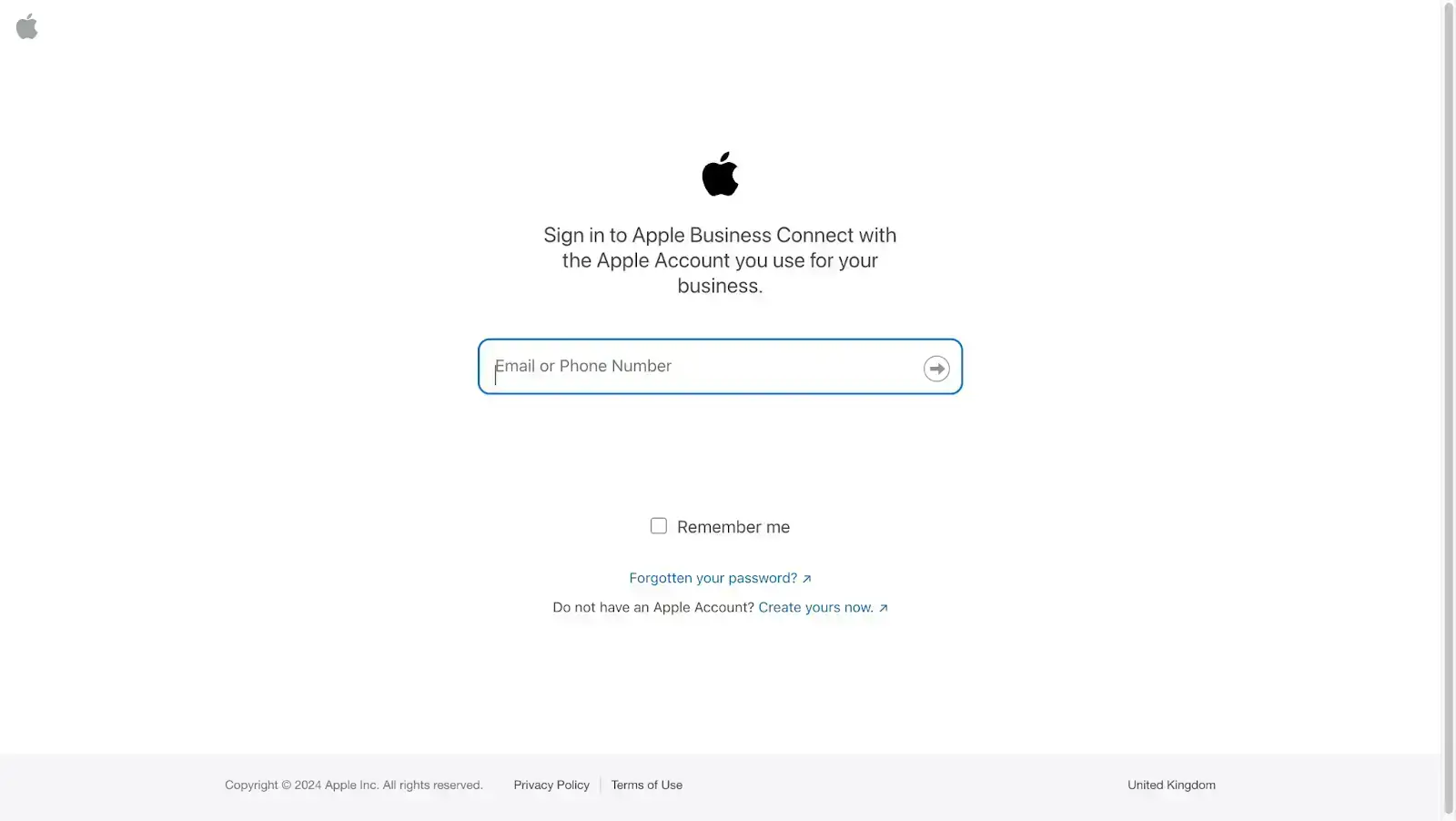
Step 1: Accessing Apple Maps via Apple Business Connect
The key to managing any business listing on Apple Maps lies in Apple Business Connect. This free platform allows businesses to claim, update, and maintain information on Apple Maps.
- Set Up or Use an Apple ID: Create or use a dedicated Apple ID associated with the business.
- Access Apple Business Connect: Head to Apple Business Connect and sign in using the Apple ID.
- Claim or Add a New Listing: If the business is already listed, claim it. Otherwise, add a new listing.
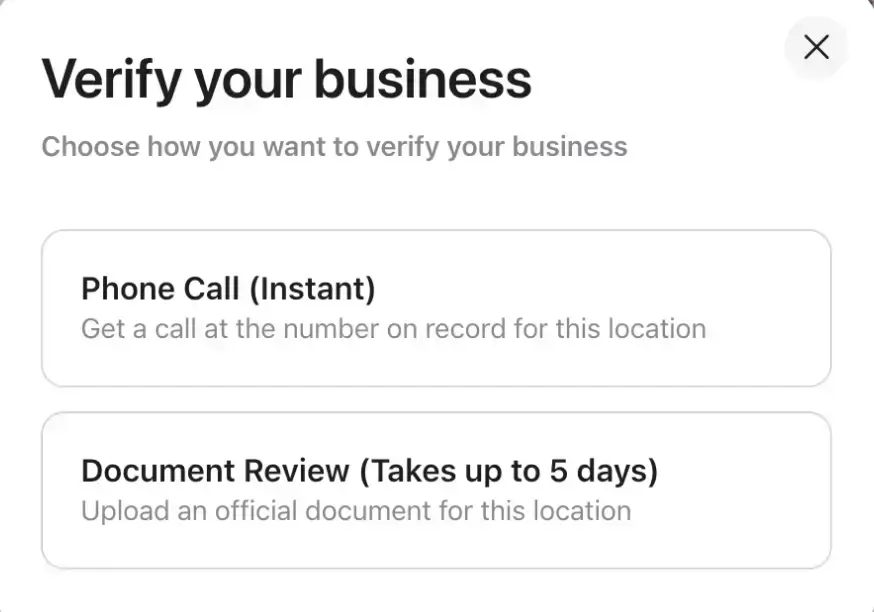
- Complete Verification: Verification can be done via phone or documentation.
Pro Tip: Maintain a shared document for each client’s Apple ID credentials in secure storage to avoid repetitive login and verification issues.
Step 2: Essential Business Information
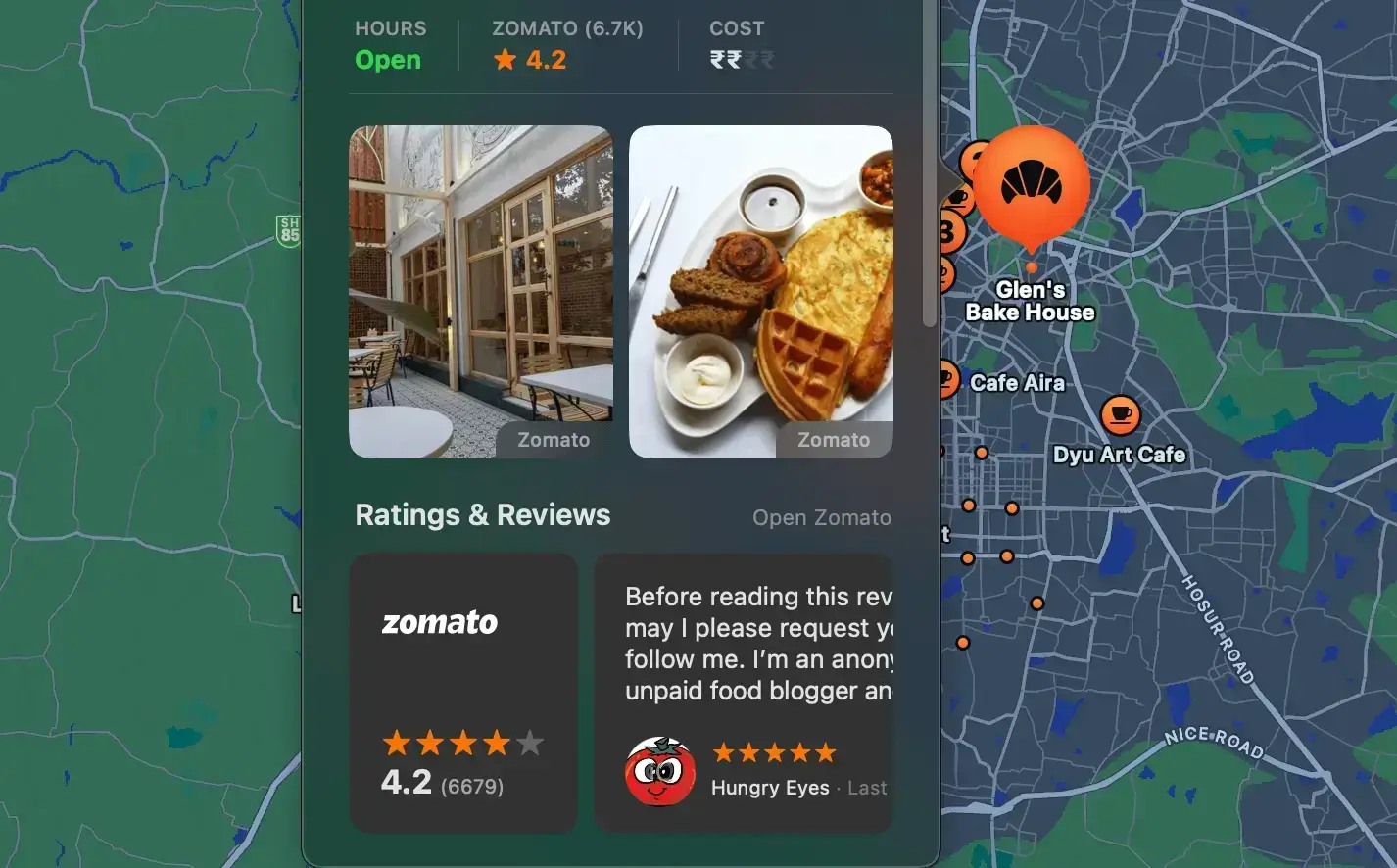
Consistency in business information, known as NAP (Name, Address, Phone), is crucial. Inaccurate or incomplete data could mislead customers and affect ranking within Apple Maps results.
- Ensure NAP information is accurate and consistent across all online platforms.
- Choose a primary category that most accurately represents the business.
- Keep business hours up-to-date, including special holiday or seasonal hours.
Step 3: Logo and Photos
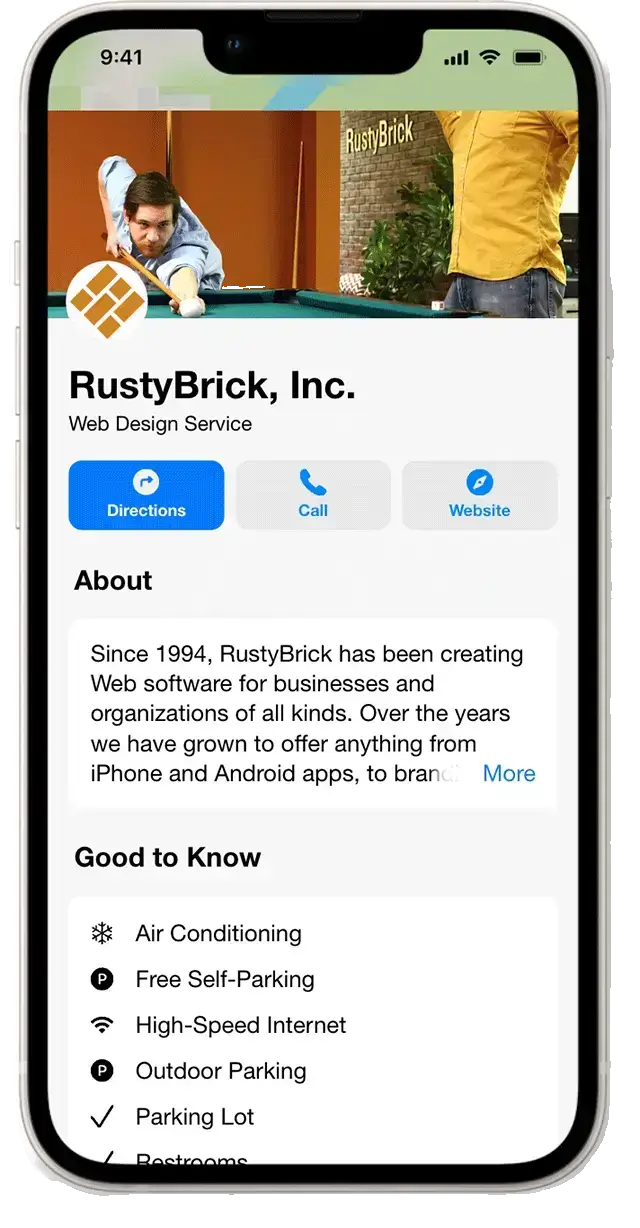
Visuals make a listing stand out and more inviting to users. Quality photos add authenticity and help users visualize the business before they arrive.
- Use a square logo at 1024×1024 pixels and a banner at 1600×1040 pixels.
- Highlight front entrances, interior views, popular products, and unique elements like outdoor seating.
Step 4: Business Description
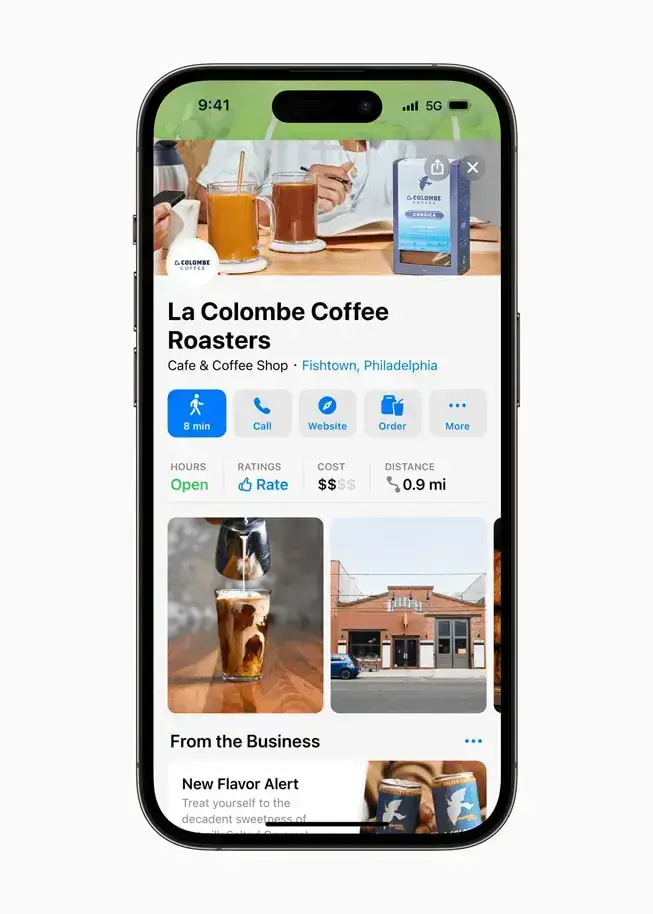
Apple Maps allows businesses to add a short description of up to 500 characters. Emphasize what makes the business stand out, use a few high-impact keywords naturally, and include location-specific terms like neighborhoods or nearby landmarks.
Step 5: Data Consistency Across Platforms
Apple Maps cross-references data from third-party sources including Yelp, TripAdvisor, and social media profiles. Consistent information across these platforms builds trust with Apple’s algorithm.
- Make sure Yelp, TripAdvisor, and similar platforms are updated.
- Search for and address duplicate listings by contacting Apple support to merge or delete unnecessary entries.
Pro Tip: Set a monthly audit for listing consistency across platforms to avoid errors or outdated information.

Step 6: Making the most out of reviews
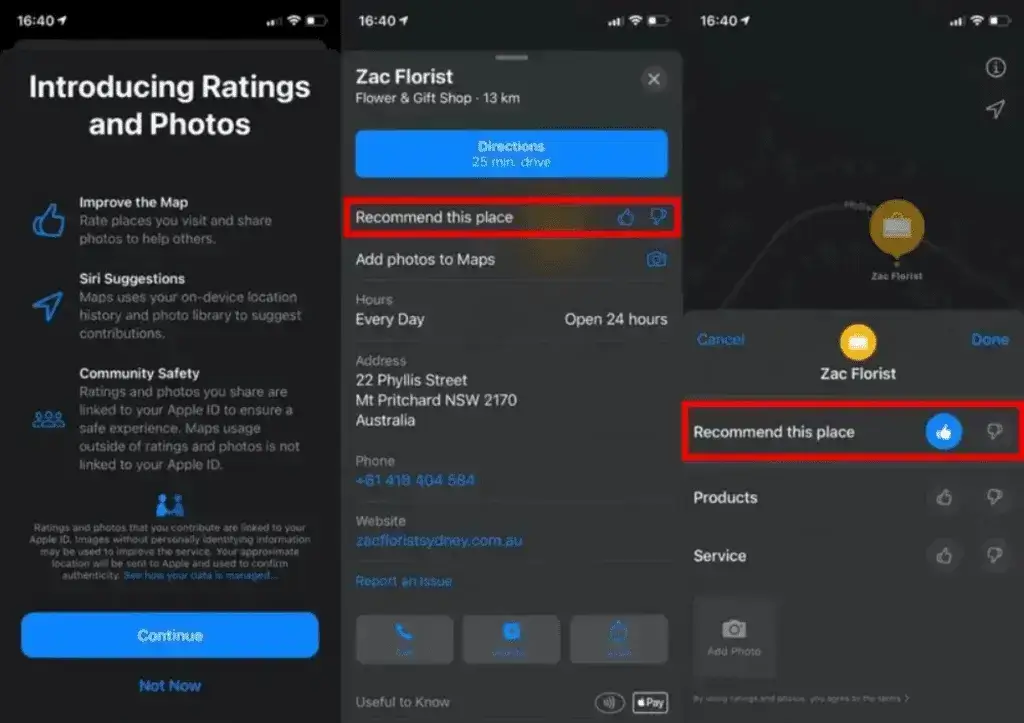
Apple Maps doesn’t have its own review system, but it pulls in reviews from Yelp and similar platforms. Encouraging clients to build up positive reviews on these linked sites can boost their Apple Maps listing.
- Actively encourage satisfied customers to leave reviews on Yelp and TripAdvisor.
- Respond to reviews, especially on Yelp, to demonstrate engagement.
5 Tips to optimize your listing on Apple Maps
1. Use localized keywords in Business Descriptions
Conduct keyword research targeted to your client’s area and incorporate terms naturally into the business description on Apple Maps.
2. Adding Secondary Business Categories
If your business could fall under more than one category, adding a secondary category can help expand the listing’s reach in relevant searches.
3. Seasonal Updates to Listings
Update descriptions or photos to reflect seasonal changes—summer refreshments, holiday drinks, or seasonal promotions.
4. Stay on Top of Platform Updates
Apple Maps frequently updates its features. Stay informed and adopt new tools early to improve customer interaction.
5. Conduct Regular Listing Audits
Every three months, review your listing thoroughly—hours, contact info, images, and new services or products.

Monitoring your listing performance on Apple Maps
Since Apple Maps doesn’t offer analytics, businesses need to get creative to track performance.
1. Track customer interactions on Yelp and TripAdvisor
Track clicks, visits, and review engagement on these platforms as a proxy for Apple Maps performance.
2. Use third-party local SEO tools
Tools like SEMrush, Synup, and Moz offer insights into local search trends that can help with your Apple Maps strategy.
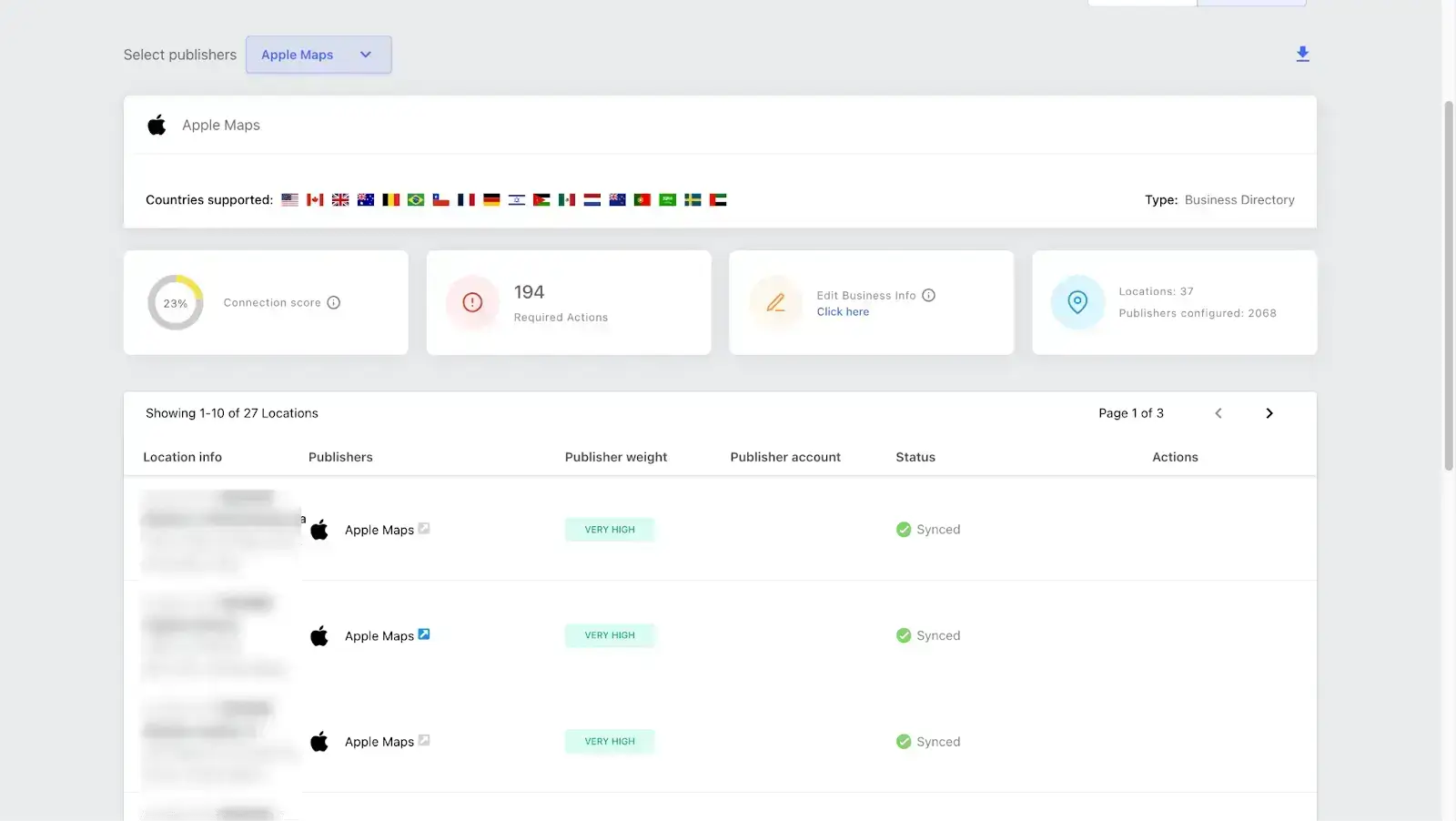
How to manage Apple Maps via Synup?
- Head to the Listings tab within Synup’s console.
- Find the Premium Listings section.
- Select the Apple Maps logo to access your Synup + Apple Maps integration settings.

Claiming your Apple Maps Listing
If you’re not managing your Apple Maps listing, someone else could be controlling details about your business—leading to inaccuracies in hours, contact details, or location.
Benefits of claiming your business listing on Apple Maps
- Ensure business details are accurate and up to date.
- Increase chances of showing up in local searches.
- Interact with customers through reviews and business chat.
- Update business hours for holidays or special promotions.
Click “Claim this place” to be redirected to Apple Business Connect, where you can verify via phone call or official document review (up to 5 days).
5 Common mistakes to avoid while using Apple Maps for Listing management
- Inaccurate or Inconsistent Business Information: Regularly audit NAP consistency across all platforms.
- Ignoring or Not Responding to Reviews: Engage with both positive and negative reviews.
- Not Setting Special Hours: Update holiday and event hours to avoid customer frustration.
- Choosing the Wrong Business Categories: Pick categories that reflect what your business actually does.
- Forgetting to Add Business Attributes: Fill in attributes like “delivery available” or “accepts credit cards.”
Summing it up
By avoiding these common mistakes and following the solutions provided, you can keep your Apple Maps listing in top shape. Claiming and regularly updating your listing can significantly improve local visibility, build trust, and drive more foot traffic.
Synup makes managing your Apple Maps listing easy with centralized management, automated syncing, audit and monitoring, review management, performance analytics, local SEO optimization, bulk management, and special hours updates. Book a demo now.
FAQs
How to optimize for Apple Maps?
Make sure your business details are accurate, complete, and up-to-date. Use the right categories, add quality images, and encourage reviews to improve visibility and rankings.
How do I update Apple Maps listings?
Claim your listing on Apple Business Connect. Once claimed, edit business info like hours, contact details, and location directly from the platform.
How do I update my Apple Maps data?
Log in to Apple Business Connect, find your business, make the necessary changes, and submit for Apple to review and update your data.