Google reviews are essential for local brick-and-mortar businesses in today’s digital age. Whether you’re a mom-and-pop bakery or a multi-location coffee chain, learning how to ask for Google reviews can transform your online visibility.
But generating Google reviews isn’t luck—it’s strategy. If you’re new to it all, this guide will help you understand the rules and show you the review acquisition strategies that work for brands like yours.

Understanding Google’s Review Guidelines
Acquiring an understanding of how to ask for a review on Google is simple, but you must abide by some rules. Ignoring them can lead to review removals or even penalties.
What Google Allows and Prohibits
Google’s review guidelines are crystal clear: be honest, stay relevant, and avoid shady tactics. From outlawing fake reviews to banning spam, the rules are there to keep things fair.
Reviews Google Allows
- Honest feedback: Google values authenticity. Customers can praise what they loved and note what they didn’t enjoy.
- Relevant details: Specific reviews like “Amazing espresso and cozy seating” are more useful than generic praise.
- Personal experiences: Firsthand stories build trust and review credibility.
- Constructive criticism: Polite critiques are welcome and help businesses improve.
Reviews Google Prohibits
- Fake reviews, spam, and incentivized reviews
- Personal attacks, off-topic content, and duplicate reviews
- Impersonation and any content promoting illegal activity
Why Are Genuine Reviews Important?
Authentic reviews that align with Google’s rules build trust with potential customers and increase credibility. They influence buying decisions for over 93% of shoppers and improve brand awareness and SEO rankings.
How to Create and Share a Google Review Link
If you want your customers to leave you glowing reviews, make it easy for them. With a direct link, asking customers how to leave a review on Google becomes effortless.
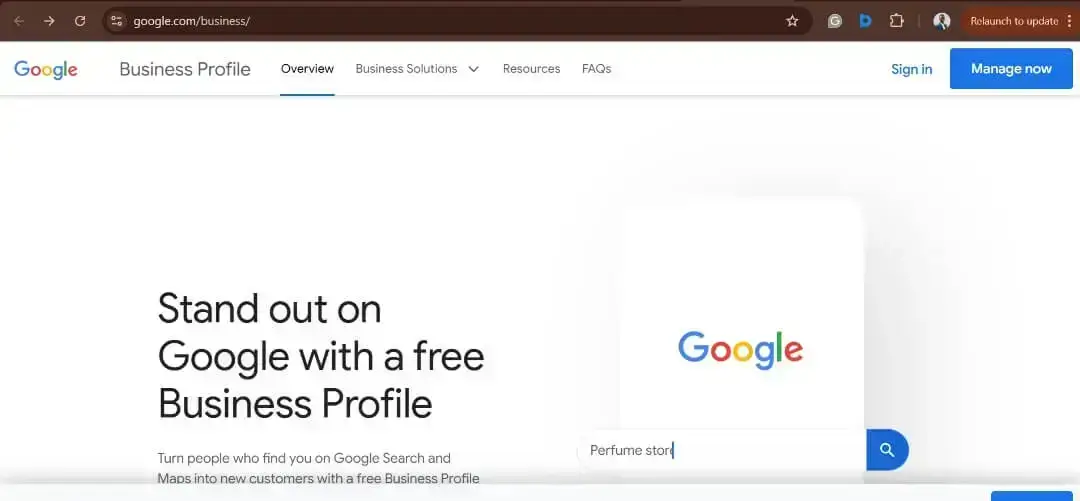
Step-by-Step
- Go to Google Business and sign in to your Google Business Profile.
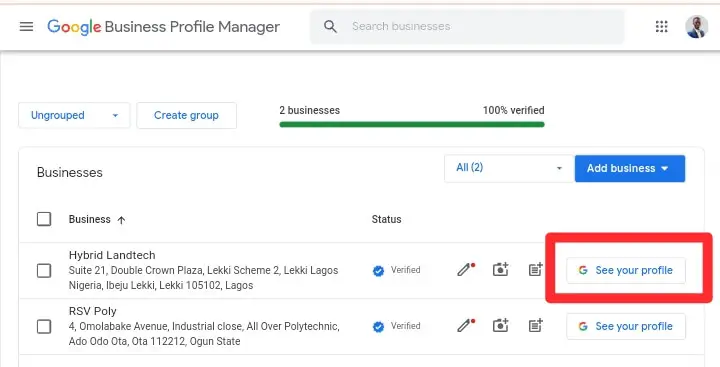
- In the Locations tab, select “See your Profile” for the location you want.
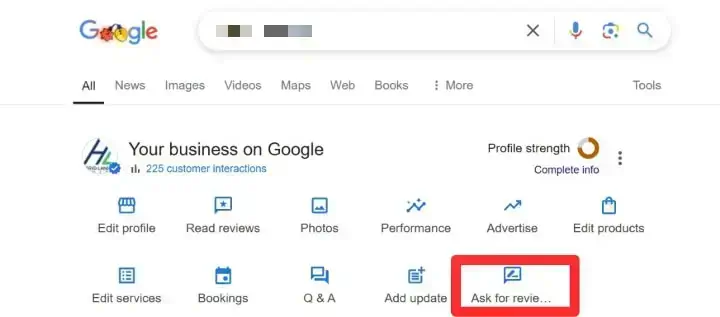
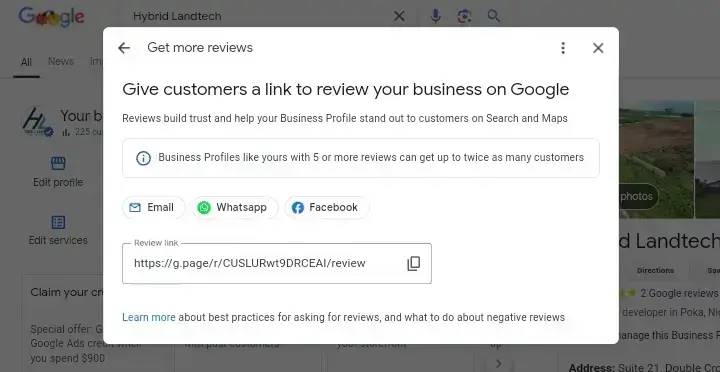
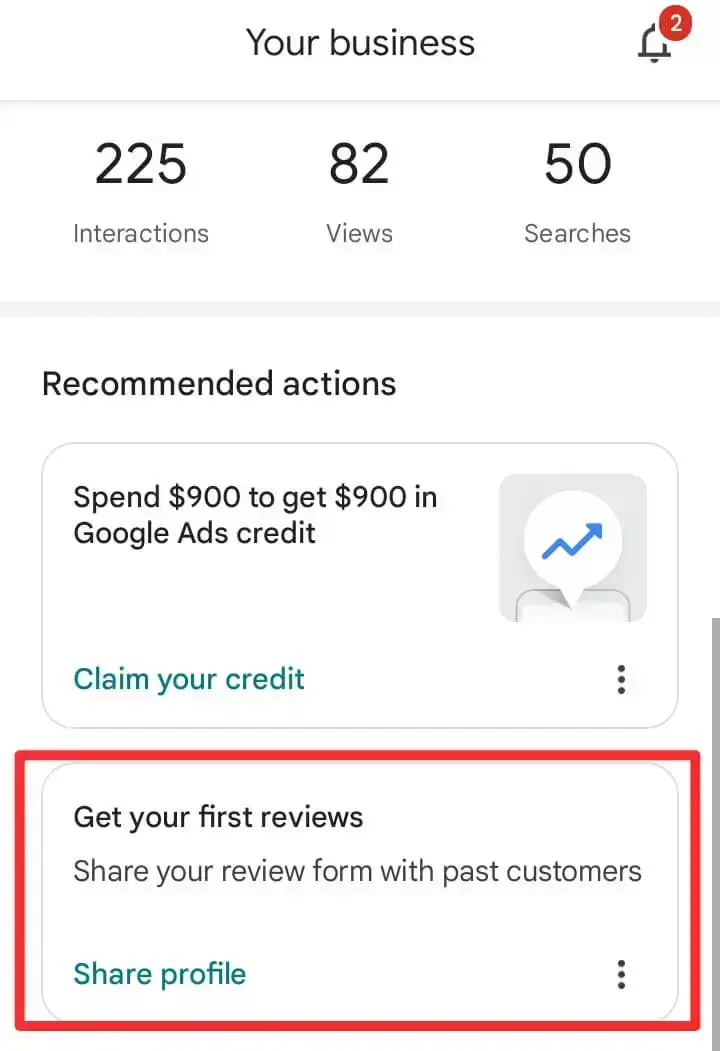
- Click “Ask for Review” or “Get More Reviews.”
- Copy the review link and share it across your channels.
Sharing the Link Across Channels
- Social Media: Share with a caption like, “Did you love your latte today? Tell us here!”
- Email: Include it in your signature or send targeted requests to happy customers.
- Website: Add a “Review Us” button to your homepage.
- SMS: Text the link after a service is completed—especially effective for service-based industries.
Strategies for Requesting Reviews Effectively
Not everyone wakes up eager to leave a review, but asking the right question at the right time can turn casual customers into raving fans.
Timing Matters
Ask after a positive interaction—when a hotel guest praises your service at checkout, or right after resolving a complaint quickly. According to Search Engine Land, 70% of customers are willing to leave reviews when asked after a positive interaction.
Simplify the Process
Make reviewing easy with direct links or QR codes on receipts, business cards, or table tents. Customers are likelier to share feedback if it takes seconds, not minutes.
Use Templates
Email subject: “Your feedback means the world to us!”
Email body: Thank the customer, explain why their review helps, and include a clear review link.
SMS: “Hi [Name], thanks for choosing [Your Business Name]! Got a minute? Share your feedback here: [Insert Google review link].”
Encouraging Positive Reviews Ethically
Ask Genuinely Satisfied Customers
Start with your happiest customers. When someone compliments your product or service, that’s your moment to ask: “Would you mind sharing your experience on Google?”
Provide a Transparent Process
Don’t pressure customers into only leaving positive reviews. Welcome all perspectives—transparency builds trust and encourages more reviews.
Provide Exceptional Service
Great service is the foundation of positive reviews. Happy customers are more likely to leave glowing feedback after an excellent experience.
Respond to Reviews Professionally
Whether it’s praise or criticism, respond politely and constructively. Professional responses show you care about customer feedback.
Report Reviews When Necessary
Fake claims or defamatory comments can damage your business. Report violations to Google through your Business Profile, and seek legal assistance only as a last resort.
Requesting Google Reviews for Multiple Locations with Synup
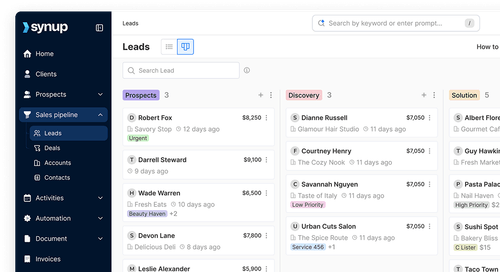
For multi-location brands who may not have time to manually manage reviews, Synup automates the entire process via email, SMS, or custom landing pages.
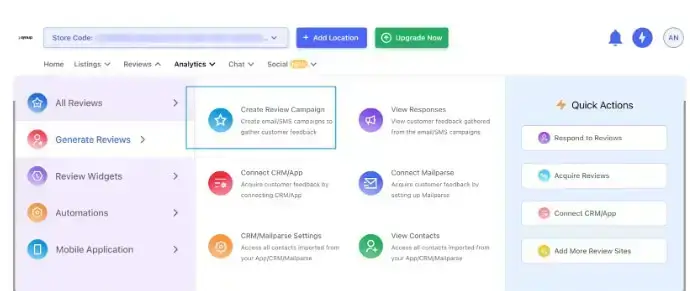
Step 1: Go to the Reviews Tab
Log into your Synup dashboard, find the Reviews tab, select “Generate Reviews,” then “Acquire New Reviews.”
Step 2: Connect Your CRM or Upload Your List
Sync your CRM or upload your prospect list in bulk. Synup’s mail parse feature can extract new customer data from email notifications automatically.
Step 3: Create a Custom Review Campaign
Choose between sending email or SMS requests, or building a static review page. Synup sends personalized review requests and tracks open rates, response rates, and location performance.
Start with Synup with a quick demo.
Summing Up
Begin by understanding Google’s review policies, then deliver exceptional service—the foundation of positive feedback. Generate review links and share them via email, SMS, your website, and QR codes on printed materials.
Learn the art of timing your requests and always engage professionally with all reviews, whether glowing or critical.
How to Request a Review on Google: FAQs
How do I ask for a Google review?
Ask politely and directly after a great experience. Show them a flyer with a QR code of your Google profile review link, or send an email request immediately after checkout.
How do I get people to give me a Google review?
Make it simple! Use QR codes or direct links in emails, SMS, or social media posts. Create standout moments with excellent service—happy customers are likelier to leave reviews.
How do I contact Google about a review?
Go to your Google Business Profile, open Reviews from the sidebar, click the three-dot icon on a review, select “Flag as inappropriate,” and follow the prompt. Escalate through official support channels for serious concerns.